Course Schedule Search Steps
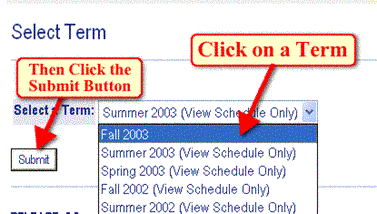
Pick the term you want from the drop-down menu, then Click Submit.
Class Search Page
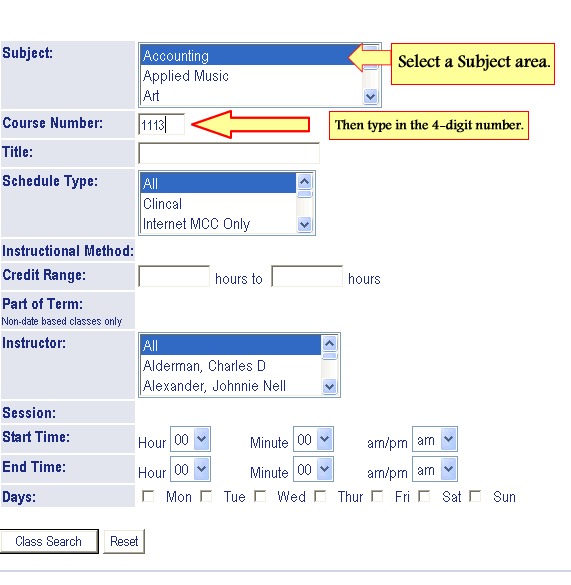
The Class search page opens. You can search for a course by any of the displayed criteria (teacher, by day, by class title, etc.), but you must select a course subject first. The Abbreviations List will help you find the subject area for a particular course. When you find it, select it in the subject area list. Each course has a 4-digit designation immediately following the abbreviation (such as MAT 1313, Art 2314, etc.). Type the 4-digit number for the course you're interested in into the "Course Number" blank as pictured below.
At this point, you can click the "Class search" button and all the sections for the course you selected will be displayed. However, if you wish, you can use the other criteria to further restrict the Search results.
Class Search Results
A list of course sections is displayed, along with the Dates, Times, Location and other information. Note that there is no indication as to whether the section enrollment is full or not. For this reason, it's a good idea to select more than one section of a particular course that will fit your schedule so that you will have alternatives during actual registration.
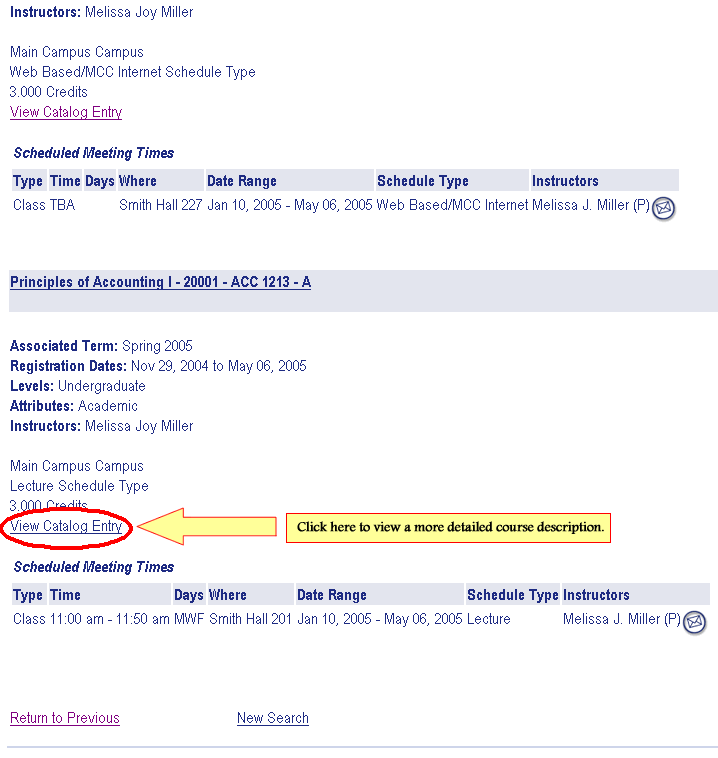
When finished, you can use one of the links at the bottom of the Results page to refine the search you just performed or the other to start a new search for a different course.