BACK to Guide Home CLOSE WINDOW
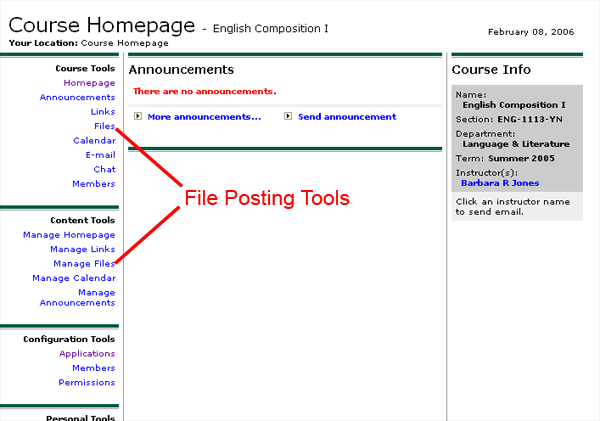
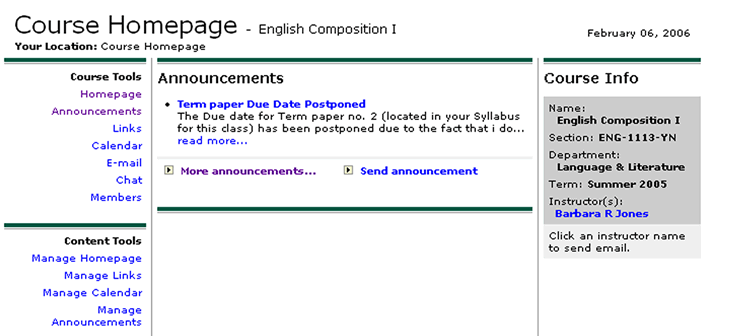
There are two ways to utilize the File Sharing tool on the My Courses Home Page. The first is the same Files tool that would be used by anyone and is in the list under the Course Tools heading. The other is the Manage Files tool under the Content Tools heading (the section that only you can access). See the picture below:
Note that students may use this tool to share files, but they will only be submitted for your approval - NOT automatically posted.
Using "Files" under "Course Tools"
First, as you probably guessed, click on "Files" under "Course Tools."
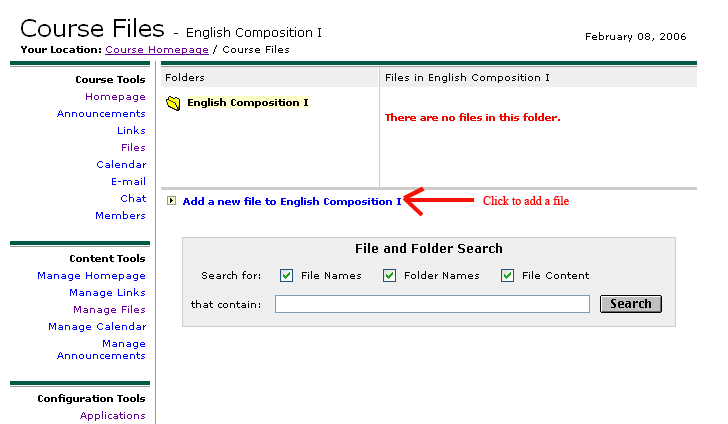
The next screen will display any files already posted or, as in the picture below where none have been posted, the clever notice in red that says "There are no files in this folder." Click on the blue link toward the left that says "Add a new file to <your Course Title> ."
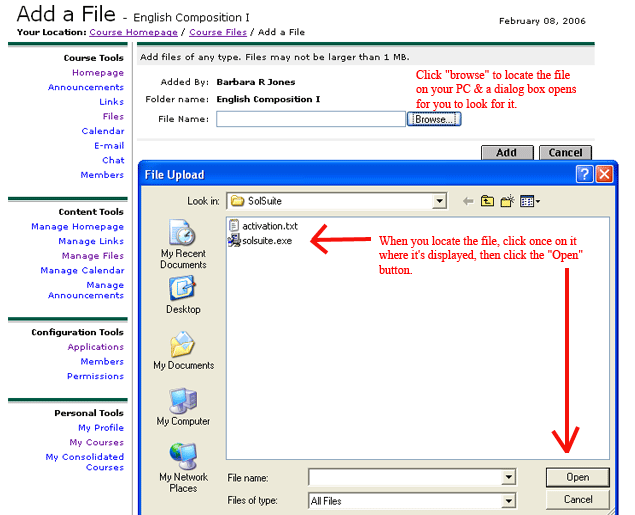
The next screen displays the form to fill out for sharing a file. Follow the example below to fill in the required information, then click the "Add" button.
After you click the "Add" button, a smaller box displays telling you the file has been sent. There is an "OK" button in this dialog box. Click on it to display the "Course Files" page. You should see something like this:
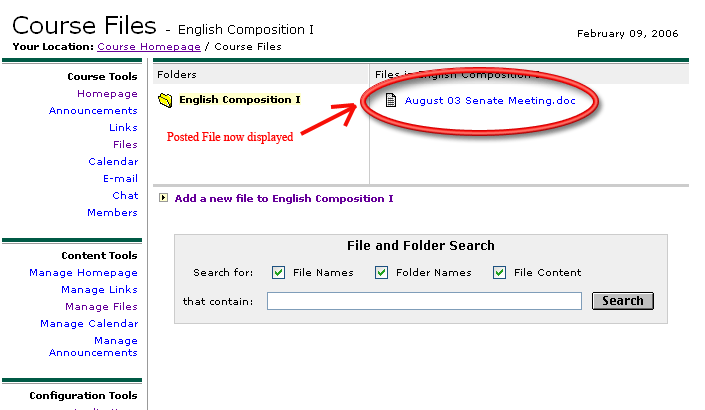
Be aware that this Course Files page only displays when someone clicks on "Files" under Course Tools.
In other words, when a student clicks the name of the course in the "My Courses" list, they will see the Course Home Page, which displays the Course "Home Page" as in the picture below. They would then have to click on "Files " in the "Course Tools" to see a page like the picture above.
Using "Manage Files" under the Course Content Heading
First (of course) click on "Manage Files" beneath the "Content Tools" Header in the left Navigation Panel of the Course Homepage (See the first picture at the top of this page for reference).
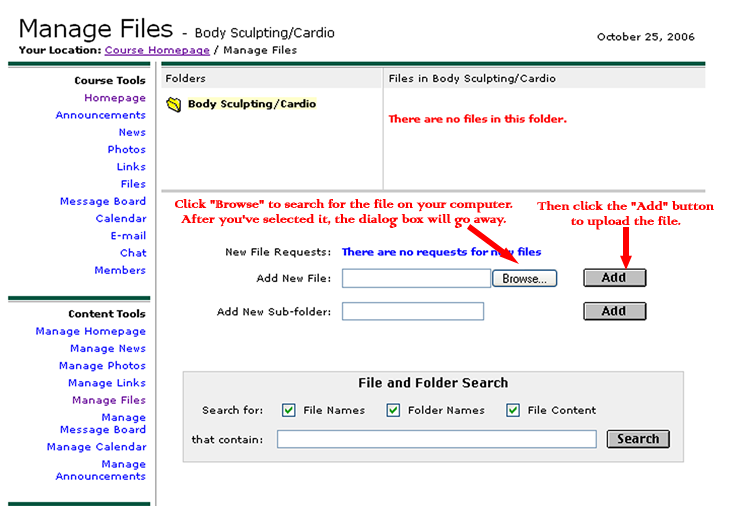
You will see the "Manage Files" page. Click the "Browse" button to look for the file you want to add to the site, then click the "Add" button:
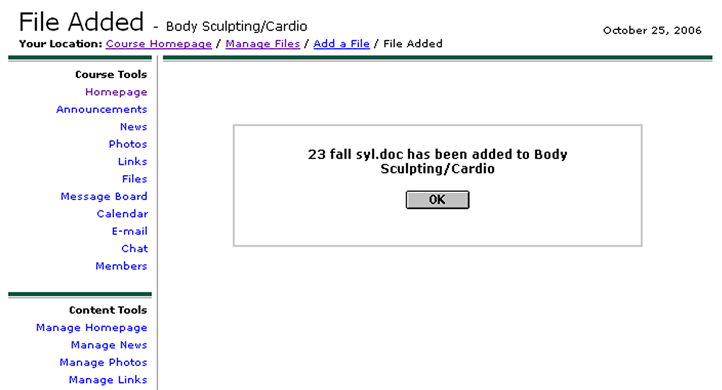
As with the "Add Files" procedure in the first part of this document, a dialog box displays telling you the file was uploaded. Click the "OK" button to dismiss the dialog box and display the Manage Files page :
Once the "OK" button has been clicked, you shold see a screen like the picture below:
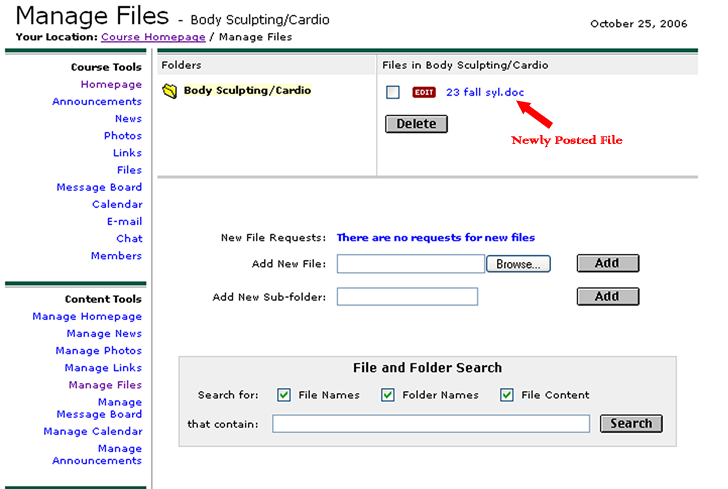
Notice the red "EDIT" button beside the file name in the picture above. This is NOT available in the regular posting procedure that opens when you click the "Files" link under the Course Tools section. That's because the "Manage Files" section is where it is located and that section is only available to you. What happens when you click on the "EDIT" button? Glad you asked!
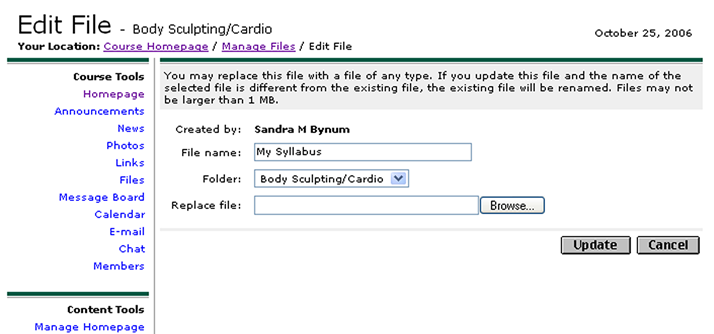
The picture below shows the "Edit Files" page which is displayed when you click the "EDIT" button. The text at the top really says it all except for distinctly saying that you can change just the name of a file you've posted and the link will still work. Notice that I've changed the name to "My Syllabus" instead of the actual file name that originally was displayed. You can also replace the file with another. This can save you a step if you no longer want a particular file displayed AND you want to add another one. Notice also that if you created a subfolder on the "Manage Files" page, you can us the "Folder:" droplist on this "Edit Files" page to post a file there. When you've made the changes you want, click the "Update" button.
Final Word: You may have noticed a "Search" form on both of the Files Posting modules. This is just what it's for. Just in case, you somehow accrue an enormous amount of posted files, you can use the Search form to look for one.
This concludes the Files tool guide.
BACK to Guide Home CLOSE WINDOW