- On This Page:
NOTE: Many "Help" files and tutorials evailable on Google show an example email address of "gmail.com" or "googlemail.com." These are only examples. The correct address for YOU to use is "Your User Name@eaglenet.meridiancc.edu" For Example: If your User Name is jjones45, the correct email address is "jjones45@eaglenet.meridiancc.edu"
Although Email usage is the main focus of this web document, the other applications provided by Google are also available to the Eaglenet user.
However, the actual assistance for these applications as well as Email is provided by Google from within the window that opens when the Eaglenet User clicks the link to access Google Apps in the Eaglenet interface.
What assistance this document can provide (as well as the staff of MCC) is limited to "Failure to connect" type of problems when the user attempts to access Google Apps from within Eaglenet, and Password Creation used in the setup to create a direct link to a "Smart Phone' or third party email client.
Even the Password Setup help is limited to ensuring that the user has the correct information (e.g. server name and protocol, user name and password etc.), but NO help is available for a particular device or Computer.
There are simply too many different so-called "Smart" phones available, and even more coming out regularly.
Google offers more detailed help that is accessible once the user accesses Google Apps through the Eaglenet. Google's help includes Online Guides (including a number of currently available Smart Phones), user contributed discussion panels and even a contact-initiated Help Request. Google's Help is also available for the usage of each of its applications.
Back
The link within Eaglenet is the only way to access the full Google Apps service. There is no extra Password to remember. Simply click the link when you are logged in to Eaglenet, and you will connect to your Email and other apps through a new window that opens.
Note that if you click a link within the window to access another application such as Documents, Calendar, or an app from the "Other" link in the header, another new window will open for that application. This potentially creates quite a line of open windows on your taskbar. Note also, that you will have to log out of EACH window when you are through.
"Is this 'log out' business really that important?" The short answer is: "Only if you want to protect your privacy." The longer answer is:
Due to different browser caches and different user settings on PC's the only way to insure that the user is logged out is by using the "Sign out" link. This is necessary because even simply closing the browser window can create the chance of a different user actually seeing YOUR account even though the new user is logged in to his/her own Eaglenet account.
Obviously, this is less important if you're using your personal computer at home. However, logs indicate that most Eaglenet users access their accounts while they are on campus from the Library or a lab. It is these situations that make signing out an absolute MUST.
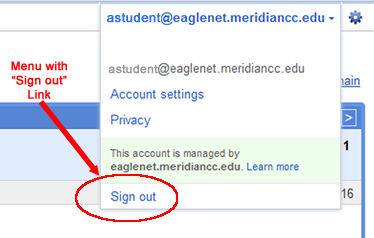
How do I sign out?" - In the window that opens to reveal your Email, you will see your full email address displayed at the very top of the window and over to the right side. Google has hidden a menu behind this email address that provides the "Sign out" option.
Just click ONCE on the email address to reveal the menu, then click ONCE on the words "Sign Out." The window will close as you are logged out. See the pictures below:

After clicking on Email Address, the menu displays as pictured below:
Back
Google offers "Help" information for creating connections for various devices at the links below. You will need the following information to create the connection to your Eaglenet Apps by Google:
- User ID - This is your entire email address which uses your Eaglenet (MCC ID) User Name. (If your User Name is jjones, you would enter jjones@eaglenet.meridiancc.edu)
- Password - There is a link after this list that you can click on to create a Password for this data connection. This Password will not alter your direct login through the Eaglenet, but IS required to make this connection.
- Domain - Even though Google is providing this service, the domain is NOT gmail.com. It is, in fact, eaglenet.meridiancc.edu and that is what you need to enter (Not all devices require a "Domain" entry because the domain is a part of the email address, which is used as the ID).
- IMAP or POP - Google provides detailed explanations of each of these settings through the setup links below. Both types connect to the Google server that hosts your mailbox and makes delivered messages available to you.
One major difference is that you will have to "enable" IMAP in your account before you can make a connection using it. Click HERE to see how to do this.
The IMAP setting you will need to set up this connection is: Server name: imap.gmail.com ---- Port: 993 ---- Encryption Type: ssl (Always)
If you use POP instead of IMAP, the settings you need are: Server Name: pop.gmail.com ---- Port: 995 ---- Encryption Type: ssl (Always) - SMTP - SMTP is the protocol that actually transports the messages from one place to another. All email services utilize SMTP for this purpose.
The settings to use for SMTP are: Server Name: smtp.gmail.com ---- Port: 587 ---- Encryption Type: tls (Always) You can use SSL if TLS is not available on your device.
Google Setup Links for different phones:
Android
BlackBerry
iPhone, iPad, or iTouch
Windows Mobile Phones
Special Note About the Password for This Connection:
- The Connection Password does not expire.
- The Connection Password is not stored on MCC servers. YOU are responsible for keeping up with it.
- Should you change phones or some other event occurs wherein you must create a new connection, the same Password can be used IF you remember it.
- If you don't remember the Password correctly, you MUST make a new one, THEN edit your settings on your email client or Mobile Device to use the NEW Password:
- Log into Eaglenet and follow the links to the one below on this page to create a new Password. Allow up to ten minutes for the new Password to be disseminated through Google's servers.
Click HERE to create a Password to use in a connection to Eaglenet Apps by Google.
Once the correct settings are in place, you should be able to connect to your Eaglenet Google Apps account and send/receive messages.
Directions on using Google Sync for your Mobile Unit (You do NOT have to use Google Sync. It is just available as an additional means of connecting and synchronizing data between your device and your account on Google's servers.). Please note that some features are limited depending on the brand of phone you are using. (Google Sync has been enabled for the eaglenet.meridiancc.edu domain, as well as for all users.)
- The Connection Password does not expire.
- The Connection Password is not stored on MCC servers. YOU are responsible for keeping up with it.
- Should you change phones or some other event occurs wherein you must create a new connection, the same Password can be used IF you remember it.
- If you don't remember the Password correctly, you MUST make a new one, THEN edit your settings on your email client or Mobile Device to use the NEW Password:
- Log into Eaglenet and follow the links to the one below on this page to create a new Password. Allow up to ten minutes for the new Password to be disseminated through Google's servers.