Student Help/Schedule
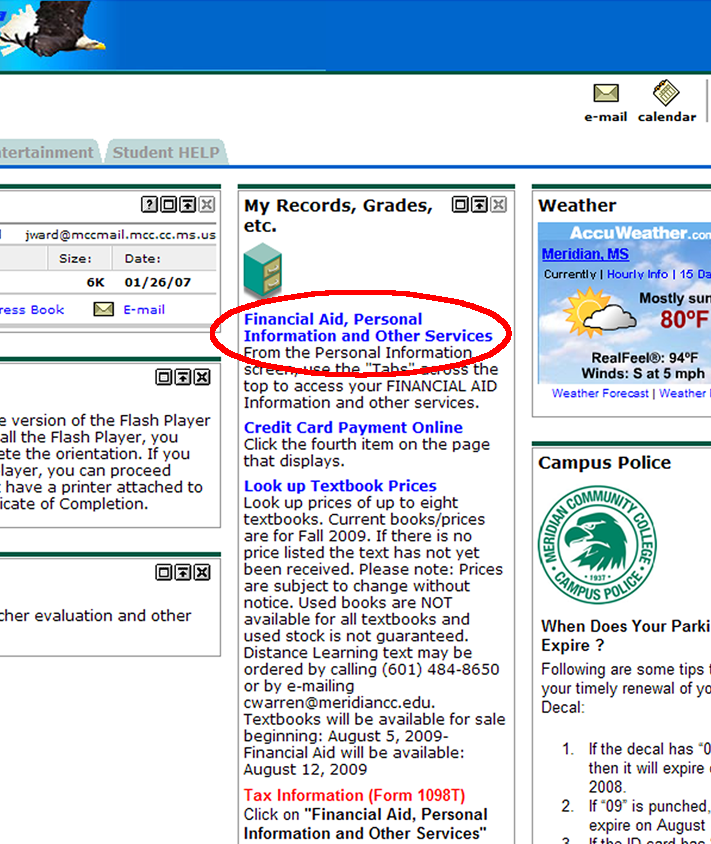
Click the link at the top of the third column on the page that displays when you log in to the Eaglenet. The link is just below a drawing of a File cabinet and says “Financial Aid, Personal Information and Other Services” as pictured here:
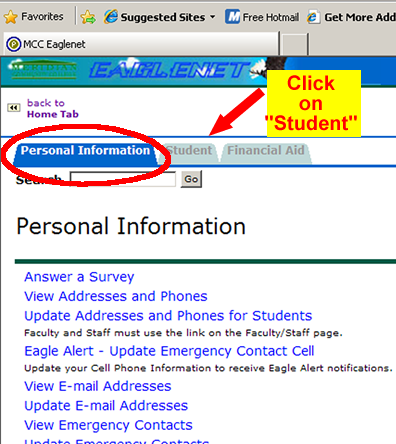
The screen changes to a display of Tabs with the Personal Information Tab selected.
Click on the Student Tab.
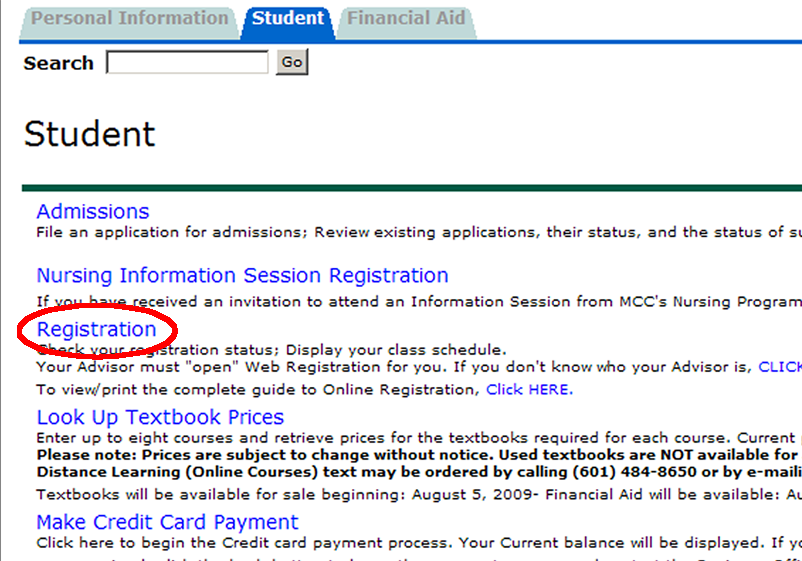
On the Student Tab, look for the item “Registration” and click on it.
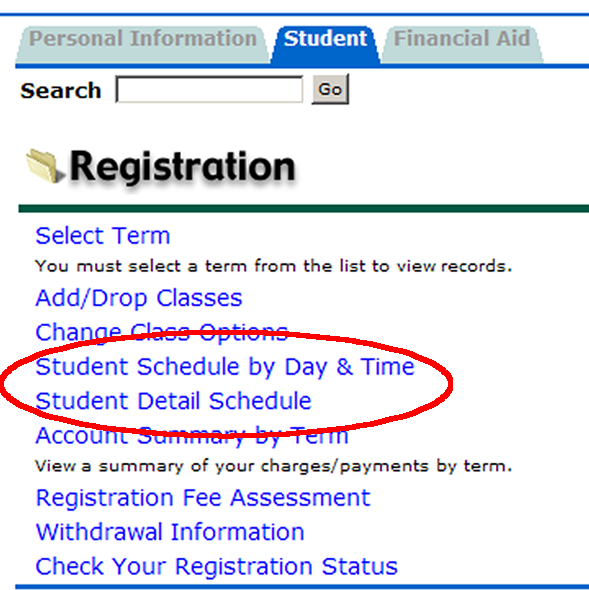
On the Registration page, click on either Student Schedule by Day and Time or Student Detail Schedule.
The Student Schedule by Day and Time presents your classes in a calendar-like grid that spans one week.
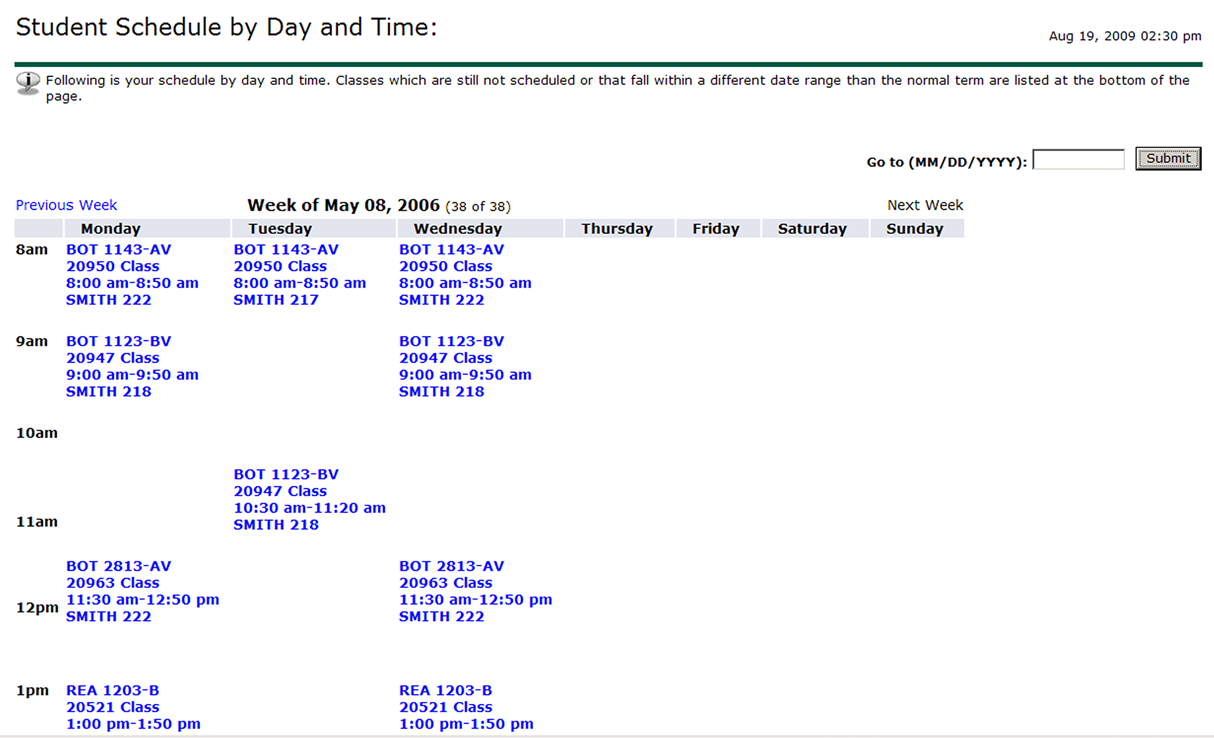
Note that if you are viewing the Day & Time schedule on a date that is NOT within the term you want to see, you will need to input a date in the upper right blank in the format displayed and click the Submit button.

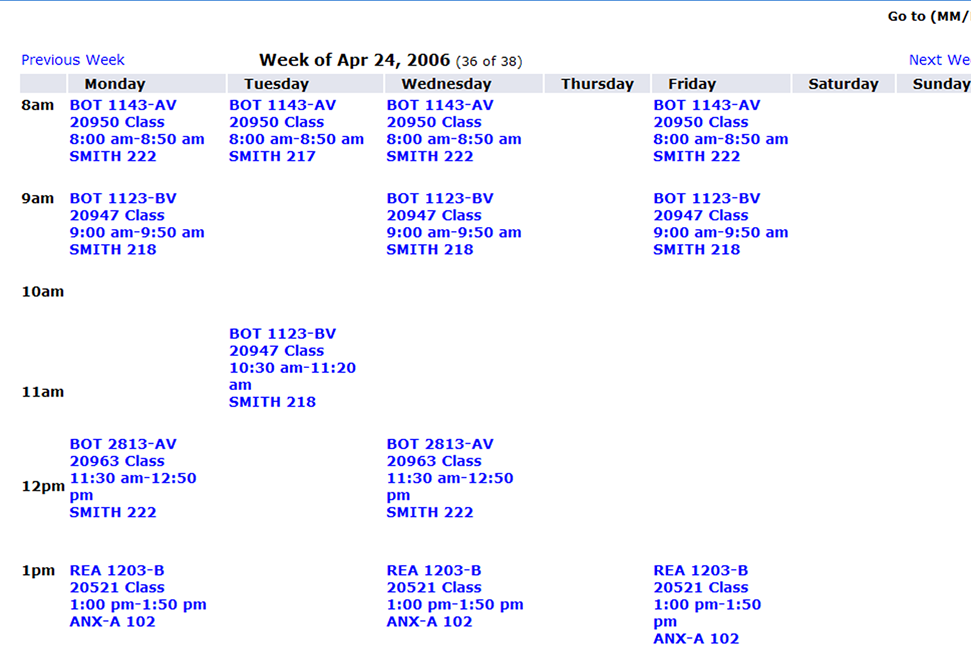
Inputting a date in the format shown above and clicking the Submit button changes the display so that ALL days are visible. Note that Friday in the schedule below now displays classes thanks to the date change.
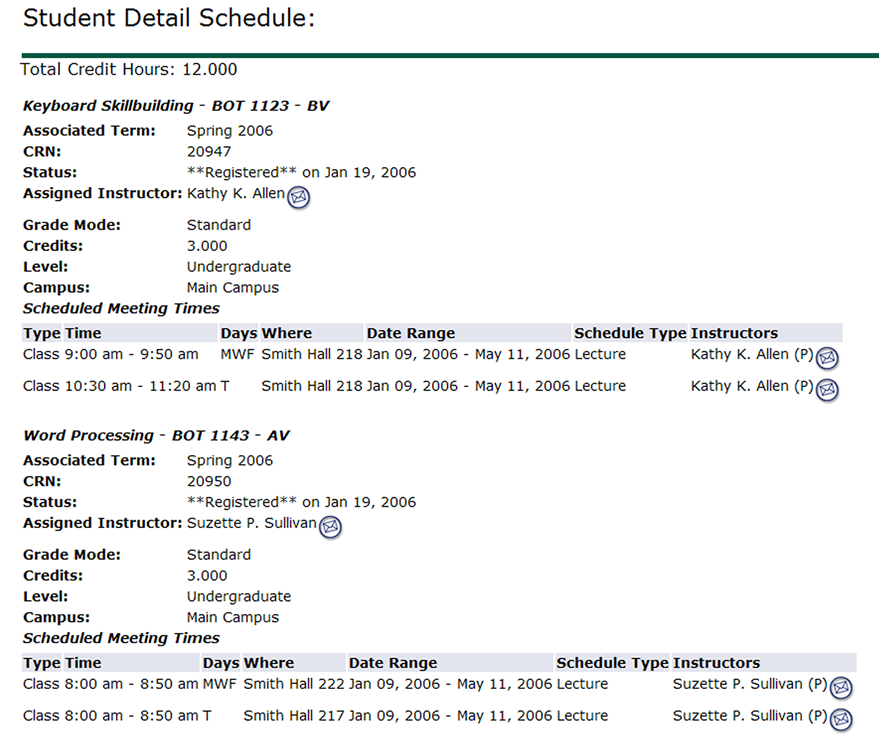
The Student detail Schedule simply lists each course and some information about it, such as the Day & Time, Instructor name, etc.
Of course, both schedule types can be printed by clicking the Printer icon at the top of the web browser. Of course, you have to have a printer connected and set up as the default printer on your computer.
This concludes the guide on viewing and printing your Class Schedule.